Texture Packing
In Spine, a texture atlas layout can change whenever regions are added, removed, or resized. When this happens, users typically need to reapply any manual texture edits to the newly generated texture images.
EmoteLab avoids this problem by storing textures as unpacked images (the same state as when they are first imported into Spine). Whenever the atlas layout changes, EmoteLab repacks these unpacked images using the latest atlas file. This allows texture edits to persist across model updates without requiring manual rework of the users.
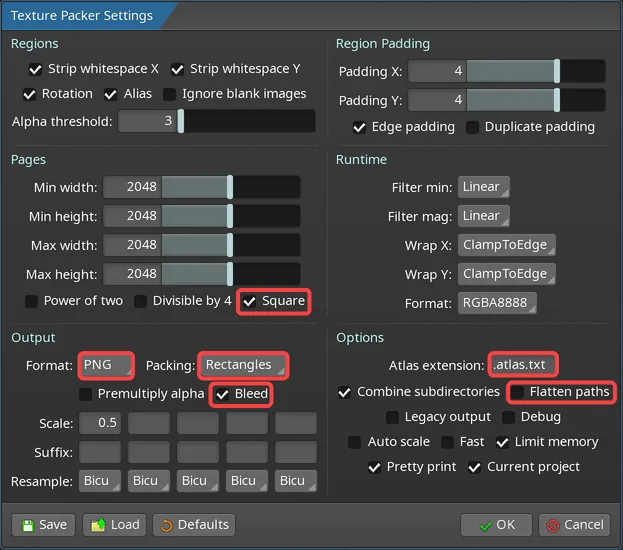
To ensure the EmoteLab texture packer and unpacker function correctly, all of the following rules must be followed:
-
Image names must remain unchanged: EmoteLab (and Spine Editor) identifies images by name. If an image is renamed, it is treated as a completely new image, and any previous edits will not be applied.
-
Folder structure must remain unchanged: The image path is included in the region name stored in the atlas file. Moving an image to a different folder changes its region name, causing EmoteLab (and Spine Editor) to treat it as a different image. For example, moving
Hair/Hair_Bang.pngtoHair_Front/Hair_Bang.pngresults in a different region and breaks compatibility. -
Image dimensions must remain the same: Changing the size of an unpacked image can cause incorrect packing results or visual artifacts when the atlas is regenerated.
-
Texture pages must be square
-
Image format must be PNG
-
Rectangle packing mode must be used
-
Enable Bleed and disable Premultiply Alpha: EmoteLab uses straight alpha
-
Atlas file extension must be .atlas.txt
-
Disable Flatten Paths